Quick Start
Skip the quick start and navigate to the API reference.
Our API enables developers to integrate Maritaca's state-of-the-art models into their applications. This document demonstrates how to use our API via HTTP requests. This guide was created to help you set up your local development environment and send your first API request. If you encounter any difficulties or have any additional questions, please visit the Platform and fill out a support request available through the Help button. If you are an experienced developer, you can go directly to the API reference.
Step 1: Account Setup
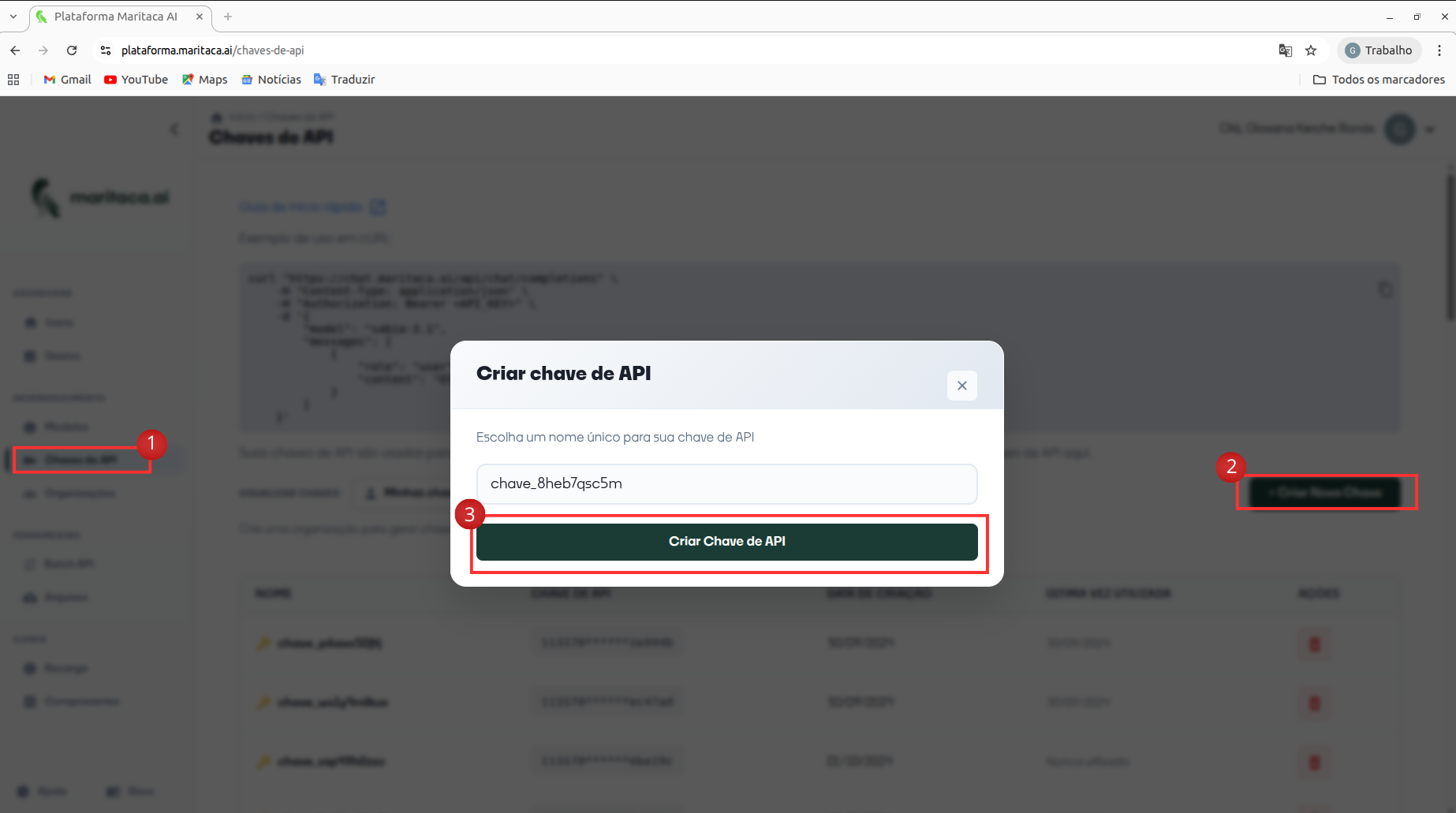
First, create an account or log in to the Maritaca platform. Then, navigate to the API key page and click "Create new key," optionally naming the key. Be sure to save the key in a secure place and do not share it with anyone.
Paste the created key into my_key.
model = maritalk.MariTalk(
    key=f"{my_key}", #Paste the key here Ex: '100088...'
    model="sabiazinho-4" # The list of supported models is available at https://docs.maritaca.ai/en/models
)
Set up your API key for all projects (recommended)
To set up your API key from the Maritaca AI platform for use in your projects, you will need to define an environment variable that will store this key. The process is similar on both Linux and Windows systems, but there are differences in how environment variables are handled on each system. Here is a step-by-step guide for both operating systems. The main advantage of this approach is that the Python library will automatically detect and use the key without requiring you to write any code.
For Linux/macOS:
- Open the Terminal: Open the terminal on your Linux or macOS operating system.
- Export the Environment Variable: Write the line below, replacing my_key with your key created in step 1:
export MARITACA_API_KEY='my_key'
- Add to Profile File: For this configuration to persist in all sessions, add the export command to your shell's profile file. For Bash, it is usually .bashrc, .bash_profile, or .profile in your user folder. Open the appropriate file with a text editor:
nano ~/.bashrc
and add the line
export MARITACA_API_KEY='my_key'
- Load the Profile File: To make the changes take effect, you need to load the updated profile file:
source ~/.bashrc
- Verification: Verify the configuration by typing the following command in the terminal:
echo $MARITACA_API_KEY
If everything went correctly, your key should be displayed.
Windows
-
Open Command Prompt or PowerShell: Open the command prompt (CMD) or PowerShell on your Windows system.
-
Define the Environment Variable: In the command prompt, you can define the environment variable temporarily with the following command:
set MARITACA_API_KEY='my_key'
In PowerShell, the command would be:
$env:MARITACA_API_KEY='my_key'
This command will define the environment variable for the current session.
-
Permanent Configuration: To make the environment variable persistent, you need to add the key to your user profile. Go to Control Panel > System > Advanced system settings > Environment variables. In the "User variables" section, click "New...". Set the variable name as MARITACA_API_KEY and the value as your API key. Click OK to close the dialog boxes.
-
Verification: Verify the configuration by typing the following command in the terminal:
echo $MARITACA_API_KEY
If everything went correctly, your key should be displayed.
Set up your API key for a single project
To ensure that your API key is kept confidential and restricted to a specific project, you can implement a secure key management system. First, configure an environment variables file called .env in the directory of your project.
To protect your credentials and prevent them from being accidentally sent to a version control repository, it is essential to create a .gitignore file in the root directory of the project. In this file, enter the line .env to ensure that the .env file is not tracked by the version control system.
After establishing the .gitignore file, you can proceed to create the .env file. Use the terminal or your preferred IDE (Integrated Development Environment) to edit these files. Enter your secret API key in the .env file, defining it as MARITACA_API_KEY. If you do not yet have an API key, you need to generate one by accessing the API keys section on the relevant platform.
Your .env file should be configured as follows:
MARITACA_API_KEY= 'my_key'
Make sure to replace my_key with your actual API key. This file will now contain the key necessary for your Python code to access the services associated with your API key, keeping the credentials secure and private.
The API key can be imported by running the following code:
import openai

model = openai.OpenAI(
  api_key="my_key",
  base_url="https://chat.maritaca.ai/api",
)
Step 2: Configuring Python
Install Python
To use the Maritaca Python library, you will need to ensure that you have Python installed. Some computers come with Python pre-installed, while others require you to set it up yourself.
- Go to the official Python website: https://www.python.org/
- In the top menu, click on "Downloads".
- Choose the latest version of Python that is compatible with your operating system (Windows, macOS, or Linux).
- Click to download the installer.
- After the download, open the installation file.
- If you are on a Windows system, click "Run" or "Executar".
- Follow the installation wizard steps.
- For Windows and macOS: The default installation is usually sufficient. Make sure to check the option to add Python to the system PATH.
- For Linux: On many distributions, Python is already pre-installed. If you need to install or update it, you can use your distribution's package manager (such as
aptfor Ubuntu,yumfor Fedora, etc.).
- To verify that Python was installed correctly, open the terminal (or command prompt on Windows) and type:
python --version
Set up a virtual environment (optional)
A virtual environment is a directory that contains an independent Python environment, with its own installation of packages. This allows you to manage dependencies for different projects easily. To create a virtual environment, Python provides an embedded module called venv that offers the basic functionality needed for the virtual environment. Open the terminal or command prompt and execute the following commands:
python -m venv my_environment
To work with the virtual environment, you need to activate it:
On Unix-based systems (Linux/macOS) execute:
source my_environment/bin/activate
On Windows, execute:
my_environment\Scripts\activate
After activation, the name of your environment will appear in the prompt, indicating that you are working within it.
Install the Package Manager PIP
Python already comes with PIP, which is a package manager, but you should check if you are using the latest version:
pip install --upgrade pip
Step 3: Install the Library
Our API can be used in two ways: through our library or through OpenAI compatibility. In this tutorial, we will teach you how to send your first request using OpenAI compatibility. After installing Python and optionally activating the virtual environment and upgrading pip, you can install the openai library. In the terminal/command line, run:
pip install openai
With the virtual environment activated, you can list all Python libraries installed in that environment with the pip list command. Open the terminal or command prompt and type:
pip list
If the installation was successful, you will see something like this:
openai X.XX.X
where X.XX.X is the version number of the openai library you installed.
Step 4: Sending your first API request
After setting up Python and configuring an API key, the final step is to send a request to the API using the Python library. To do this, create a file named maritaca.py using the terminal or an IDE. Inside the file, copy and paste one of the examples below:
import openai

client = openai.OpenAI(
    api_key="insert your key here, e.g., '100088...'",
    base_url="https://chat.maritaca.ai/api",
)

response = client.responses.create(
  model="sabia-4",
  input="What is 25 + 27?",
)
answer = response.output[0].content[0].text

print(f"Answer: {answer}")   # Should print something like "25 + 27 equals 52."
To run the code, type python maritaca.py in the terminal/command line.