Explainer video
What is it?
The Batch API is an efficient option for sending batches of asynchronous requests, offering cost reductions of up to 50%. In this mode, rate limits are calculated by characters per day, even though billing still occurs per token. For tiers 1 through 5, the daily limit is 1.2 billion characters (roughly 300 million tokens), while for Tier 0 the limit is 4 million characters (about 1 million tokens) per day. Only input tokens count toward the rate limit.
Additionally, requests may take up to 24 hours to complete, making the service particularly suitable for workloads that do not require immediate responses and that aim to reduce operational costs. Because requests can take up to 24 hours to process and batches expire if they are not finished within that window, the Batch API is not recommended for critical scenarios where execution failure due to expiration would be unacceptable.
Batch processing is often useful in cases such as:
- Translation or mass text review
- Performing evaluations
- Classifying large datasets
- Summarizing multiple documents
- Extracting entities and keywords in documents
The Batch API consists of a set of endpoints that allow you to:
- Create a new batch (
POST /batches): Start batch processing by sending a set of requests at once. - Check the batch status (
GET /batches/{id}/status): Returns the processing progress, indicating whether it is still running or has finished. - Retrieve results (
GET /batches/{id}/results): Provides the answers to each request in the batch as soon as the processing is completed.
How to use
You can work with the Batch API in two ways: through the visual interface or programmatically (code).
Visual interface
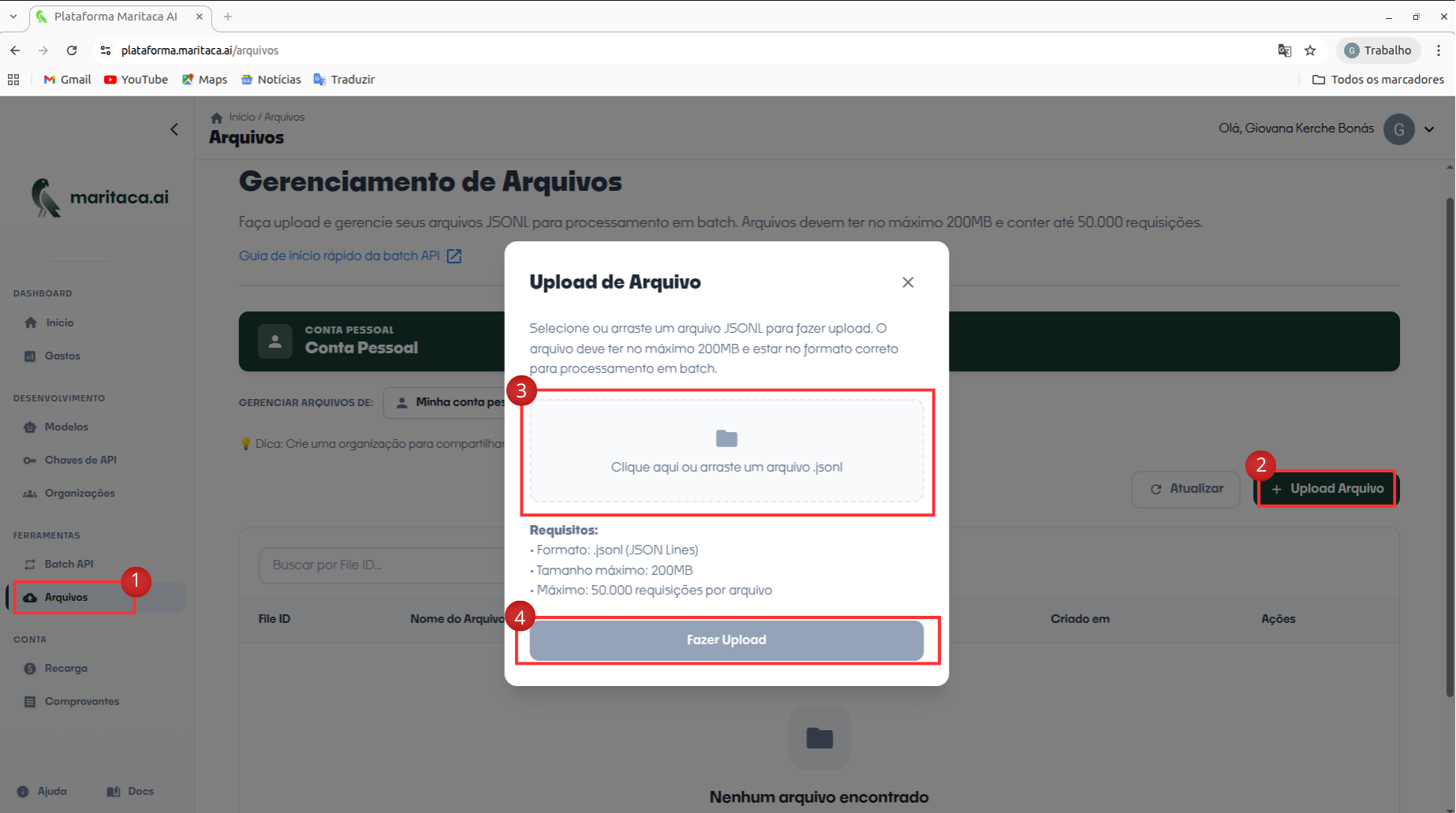
- In the web interface, the process for uploading your .jsonl file starts in the side-menu: select Files and, in the upper-right corner of the page, click + Upload. A modal window opens where you can drag-and-drop or browse for the file on your computer—just drop the .jsonl into the dashed area in the centre of the dialog. After selecting the file, press Upload to start the transfer. When the upload finishes, the document appears in the file list with the status processed and receives a file_id; you’ll use this identifier to create the batch in the next step. Each file can be at most 200 MB and contain up to 50,000 requests.
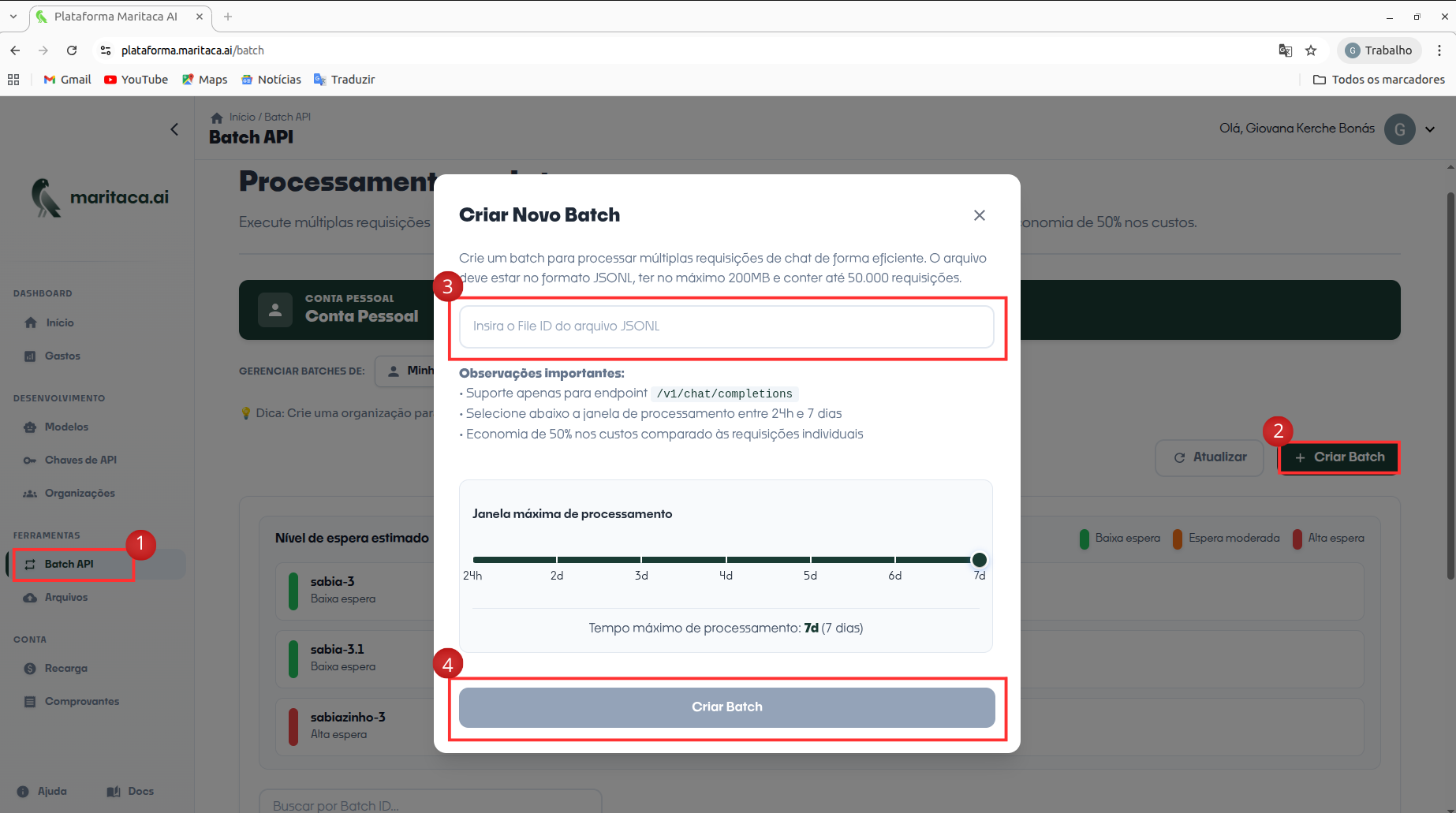
- To create the batch in the web interface, open the side-menu and select Batch API; the batch list is shown in the main panel. In the upper-right corner, click + Create to open the Create Batch dialog. Simply paste the File ID generated in the previous step (the file must be under 200 MB or 50,000 requests) and then press Create Batch. The system validates the file and, once execution begins, the new batch appears in the list with its identifier and real-time progress.
Programmatic use
1. Setting Up Your Batch File
For each batch, use a single .jsonl file: each line corresponds to one API request (the same parameters as the endpoint). Include a unique custom_id in each request to locate the result later. Each file can be at most 200 MB and contain up to 50,000 requests. Example (two requests):
Note: Each file can only contain requests for a single model. For example, it is not possible to have requests for sabia-4 and sabiazinho-4 in the same file.
{"custom_id": "request-1", "method": "POST", "url": "/v1/chat/completions", "body": {"model": "sabia-4", "messages": [{"role": "user", "content": "Escreva um lindo poema sobre a Serra do Mar"}],"max_tokens": 1000}}
{"custom_id": "request-2", "method": "POST", "url": "/v1/chat/completions","body": {"model": "sabia-4", "messages": [{"role": "user", "content": "O Brasil tem vulcão?"}],"max_tokens": 200}}
2. Uploading the Batch Input File
Send your .jsonl file using the endpoint below. Files can contain at most 50,000 requests and must be no larger than 200MB each.
import openai

client = openai.OpenAI(
    api_key="",  # Your API_KEY
    base_url="https://chat.maritaca.ai/api",
)

batch_input_file = client.files.create(
    file=open("batchinput.jsonl", "rb"),
    purpose="batch"
)

print(batch_input_file)
Note: Currently, only the "batch" purpose is supported for file uploads. Other purposes (such as "finetuning" and "assistant") are not supported.
3. Creating the Batch
Use the file ID (for example, file1) to create the batch. The completion_window is fixed at 24h, and you can include extra metadata via the metadata parameter. Example:
import openai
client = openai.OpenAI(
    api_key="",  # Your API_KEY
    base_url="https://chat.maritaca.ai/api",
)

batch_input_file_id = batch_input_file.id
client.batches.create(
    input_file_id=batch_input_file_id,
    endpoint="/v1/chat/completions",
    completion_window="24h",
    metadata={
        "description": "job for marketing data",
        "owner": "marketing team"
    }
)
This request will return a Batch object with metadata about your batch:
{
  "id": "batch1",
  "object": "batch",
  "endpoint": "/v1/chat/completions",
  "errors": null,
  "input_file_id": "file1",
  "completion_window": "24h",
  "status": "validating",
  "output_file_id": null,
  "error_file_id": null,
  "created_at": 1744838747,
  "in_progress_at": null,
  "expires_at": 1744838747,
  "completed_at": null,
  "failed_at": null,
  "expired_at": null,
  "request_counts": {
    "total": 0,
    "completed": 0,
    "failed": 0
  },
  "metadata": null
}
4. Checking the Batch Status
It's possible to check a batch's status at any time, and you'll also receive the corresponding Batch object as part of that process.
import openai
client = openai.OpenAI(
    api_key="",  # Your API_KEY
    base_url="https://chat.maritaca.ai/api",
)

batch = client.batches.retrieve("batch1")
print(batch)
Batch Status
Each Batch object can have one of the following status:
| Status | Descrição |
|---|---|
| validating | The input file is in the process of being validated before starting the batch. |
| failed | The validation process for the input file did not succeed. |
| in_progress | The input file was successfully validated, and the batch is currently running. |
| finalizing | The batch has finished running, and its results are now being prepared. |
| completed | The batch has finished running, and the results are ready. |
| expired | The batch did not complete within the 24-hour window and has expired. |
| cancelling | A request has been made to cancel the batch, this can take up to 10 minutes to finalize. |
| cancelled | The batch was canceled and will not continue processing. |
5. Obtaining the Batch Results
When the batch has finished processing, you can obtain the output by sending a request to the API using the output_file_id from the Batch object. After receiving the file, save it locally (for example, as batch_output.jsonl).
import openai
client = openai.OpenAI(
    api_key="",  # Your# API_KEY
    base_url="https://chat.maritaca.ai/api",
)
file_response = client.files.content("file1")
print(file_response.text)
Handling the JSONL Output
The JSONL output file will contain a single response line for each successful request in your input file. Any requests that fail will have their error details stored in a separate error file, whose ID can be found in the Batch object’s error_file_id field.
Keep in mind that the order of the output lines may not match the input lines. To reliably match each output to its corresponding input, use the custom_id field, which is included in every line of the output file.
{"id": "batch_req_1", "custom_id": "request1", "response": {"status_code": 200, "request_id": "req_1", "body": {"id": "chat1", "object": "chat.completion", "created": 1744838747, "model": "sabia-4", "choices": [{"index": 0, "message": {"role": "assistant", "content": "Olá mundo."}, "logprobs": null, "finish_reason": "stop"}], "usage": {"prompt_tokens": 5, "completion_tokens": 14, "total_tokens": 19}, "system_fingerprint": "abc123"}}, "error": null}
{"id": "batch_req_1", "custom_id": "request2", "response": {"status_code": 200, "request_id": "req_2", "body": {"id": "chat2", "object": "chat.completion", "created": 1744838747, "model": "sabia-4", "choices": [{"index": 0, "message": {"role": "assistant", "content": "Hello World."}, "logprobs": null, "finish_reason": "stop"}], "usage": {"prompt_tokens": 4, "completion_tokens": 26, "total_tokens": 30}, "system_fingerprint": "abc123"}}, "error": null}
After the batch finishes, the output file remains available for 30 days and is then automatically deleted.
6. Canceling a Batch
If needed, you can cancel a batch that’s currently running. During cancellation, the batch status changes to canceling while any ongoing requests continue (potentially up to 10 minutes). Once these requests have finished, the status updates to cancelled.
Canceling a batch:
import openai
client = openai.OpenAI(
    api_key="",  # Your API_KEY
    base_url="https://chat.maritaca.ai/api",
)

client.batches.cancel("batch1")
7. Listing All Batches
You can view all of your batches at any point in time. If you have a large number of batches, you can use the limit and after parameters to paginate your results.
import openai
client = openai.OpenAI(
    api_key="",  # Your API_KEY
    base_url="https://chat.maritaca.ai/api",
)

client.batches.list(limit=10)
Understanding Batch Expiration
If a batch does not finish within the allotted time, it will transition to the expired state. Any incomplete requests are canceled, while completed requests remain available through the batch’s output file. You will still be charged for the token usage of any requests that were successfully completed.
Requests that expire are added to your error file with a message like the one shown below. You can use the custom_id to retrieve request details for those expired requests.
{"id": "batch_req_1", "custom_id": "request-1", "response": null, "error": {"code": "batch_expired", "message": "This request could not be executed before the completion window expired."}}
{"id": "batch_req_1", "custom_id": "request-2", "response": null, "error": {"code": "batch_expired", "message": "This request could not be executed before the completion window expired."}}